
Da Vinci Eye: AR Art Projector
Da Vinci Eye LLCArt & Design
4.3120.00 Reviews
- Version
- 5.0.2
- Installs
- 500.00K
- Age Rating
- Teen
Screenshots
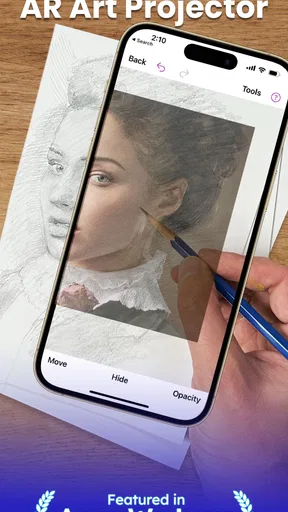
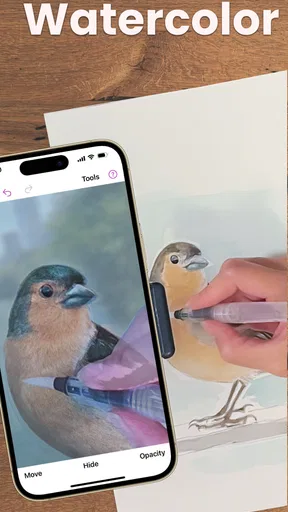
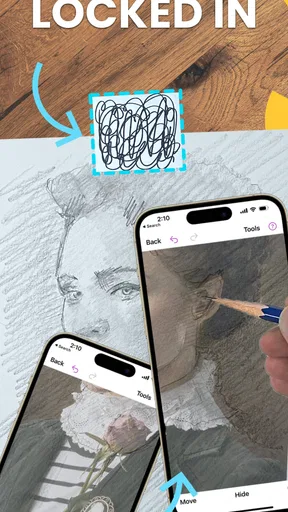
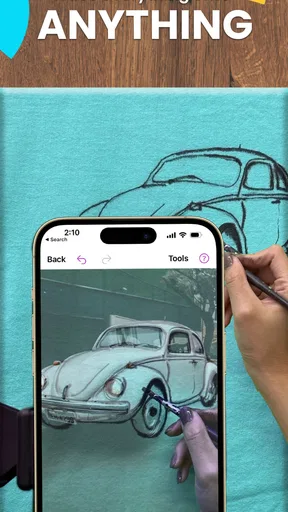
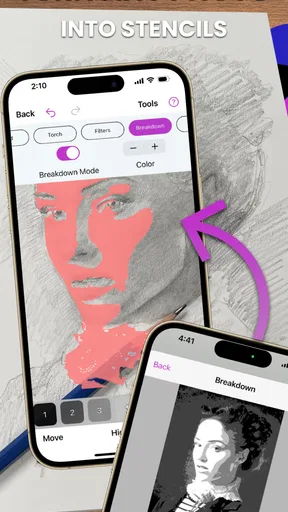
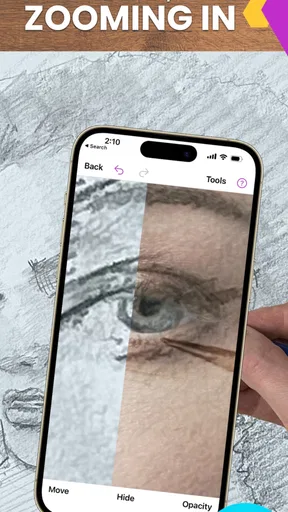
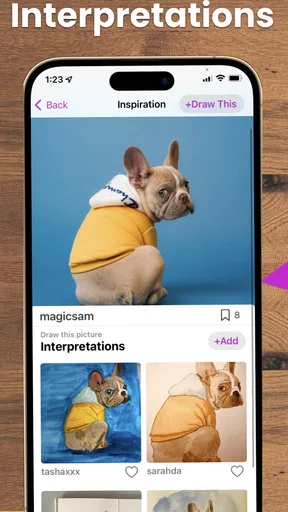
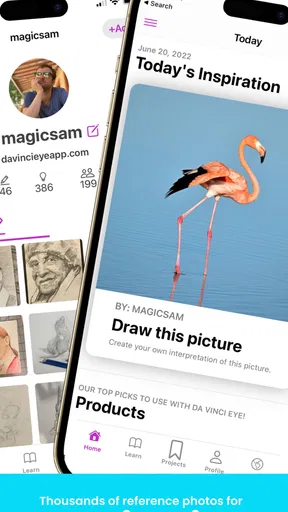
Our Review of Da Vinci Eye: AR Art Projector
 Analysis by Appyee
I found Da Vinci Eye: AR Art Projector most useful when I wanted help getting a drawing’s proportions right without giving up the hands-on part of making it. It does not replace observation, practice, or personal style. Instead, it places a reference image into the real world through augmented reality so I can trace or draw over it while looking at my paper. That simple idea makes it especially appealing to beginners, hobby artists, and anyone who has ever produced a recognizable subject with completely wrong proportions.
My overall view is positive, but with an important qualification: this is a guided drawing tool, not a magic shortcut to artistic skill. The strongest results come when I use it as a temporary scaffold, then switch back to studying shapes, values, and edges on my own. Used that way, it can make the frustrating first stages of a drawing much more approachable. Used as a substitute for learning, it can leave the finished work feeling technically accurate but personally thin.
How the AR drawing approach feels in practice
The app belongs to the art and design category and is developed by Da Vinci Eye LLC. Its central appeal is the ability to align a reference with a physical drawing surface and follow the projected image while working. Compared with simply copying a picture from another screen, this keeps my attention close to the paper and gives me a direct visual guide for placement, outlines, and major shapes.
The first useful distinction is between tracing and drawing. Tracing can help me reproduce an outline, but the more valuable workflow is using the overlay to establish a framework before drawing independently. I can check the position of the head, the angle of a shoulder, or the width of an object, then concentrate on shading and texture without constantly wondering whether the entire structure has drifted.
That makes the app particularly effective for subjects where proportion matters more than spontaneous mark-making. Portraits, animals, simple still-life arrangements, lettering studies, and recognizable objects all benefit from an initial guide. If the reference is carefully chosen and the physical setup remains steady, I can spend more time on the parts that normally get lost during repeated corrections.
There is also a psychological advantage that is easy to underestimate. A blank page can make a new artist hesitate before the first line. Having a visible starting point reduces that barrier. I am more willing to experiment with pencil pressure, hatching, and color when I am not simultaneously trying to solve the entire composition from memory.
Why the reference setup matters more than expected
The quality of the result depends heavily on how well the reference and paper stay aligned. I learned not to treat the AR overlay as something I can casually glance at from any position. A small change in viewing angle can make a line appear to sit somewhere different from where it was intended. The phone, the drawing surface, and my head position all affect how convincing the guide feels.
For a reliable session, I prefer a stable surface, consistent lighting, and a reference with clear shapes. I also begin with a few major landmarks instead of immediately chasing tiny details. Marking the outer boundary, center line, and key intersections gives me a structure I can verify before committing to darker lines. This is one of the most practical ways to avoid building a detailed drawing on top of a misplaced foundation.
A busy photograph is usually a poor starting point. Hair, foliage, reflective objects, and complicated backgrounds can create too many possible lines to follow. A cleaner reference lets the app do what it does best: provide visual placement. I get better results when I simplify the image first, whether by choosing a less cluttered subject or by mentally separating the main forms from decorative detail.
Another useful habit is to work in stages. I lightly establish the broad shapes, pause to inspect the drawing without relying on the overlay, and only then add stronger contours. This prevents the guide from becoming a crutch and makes it easier to notice whether the drawing works as an image rather than merely matching a projection.
Where it is stronger than ordinary copying
When I copy from a picture displayed on a separate screen, I have to move my eyes repeatedly between the reference and the paper. That process is perfectly valid, but it can become tiring and makes proportional comparison slower. The AR approach places the visual information closer to the drawing itself, which is helpful when I am working on a larger composition or trying to position a subject accurately on the page.
It is also more forgiving for people who have not yet developed strong measuring habits. Traditional artists may compare widths with a pencil, use sight-size methods, or construct a subject from boxes and axes. Those methods teach valuable skills, but they can feel demanding at the beginning. This app offers a more immediate entry point, especially for someone who wants to complete a first portrait or illustration before committing to a long technical study.
That convenience does not make conventional methods obsolete. A person focused on observational drawing, figure construction, or visual memory will eventually need to practice without an overlay. I see the app as a bridge between “I cannot get the proportions down” and “I can now study why the proportions work.” Its value grows when I use it to understand relationships rather than simply reproduce a contour.
A realistic everyday use case
Imagine wanting to draw a pet from a favorite photograph after work. I might have only a short evening available and not enough confidence to build the animal from observation. With the app, I can choose a clear image, place the paper securely, establish the body’s main shape and the position of the eyes, then continue with fur direction and tonal variation after checking the structure.
That workflow is more satisfying than spending the entire session erasing a head that became too large. It also gives me a finished study I can revisit later. On another day, I can attempt the same subject without the guide and compare where my unaided observation has improved. In this situation, the app is not just a shortcut; it becomes a way to separate composition practice from rendering practice.
What I liked, and where the trade-offs appear
The biggest strength is clarity. The app makes the relationship between a reference and a physical surface easier to understand than a standard image viewer does. For a beginner, that immediate connection can be the difference between abandoning a drawing and completing it. I especially appreciate it for early construction, where a few misplaced angles can affect every later decision.
It is also flexible in the kind of artistic work it can support. I can approach it as a tracing aid, a proportion checker, or a temporary construction layer. Those are different uses, and the app is more rewarding when I choose one deliberately. For example, I may use a light guide for a portrait, then hide my dependence on it by rendering the face from memory while referring back only for landmarks.
The main weakness is that augmented reality is sensitive to physical conditions. The experience is not equivalent to drawing on a perfectly fixed digital canvas. Paper can move, the device can shift, and my viewing position can change. Even when the projected guide looks convincing, I still have to make careful marks by hand. Anyone expecting automatic precision without attention to setup may become frustrated.
Screen brightness and room lighting can influence comfort as well. A dark reference may be difficult to interpret, while a bright display can compete with the marks on the page. I find that a moderately lit workspace and a reference with strong separation between major forms are more useful than trying to force the app to handle a visually confusing image.
There is a second limitation that matters creatively: following an overlay can encourage overconfidence. A traced outline may look correct while the drawing still lacks convincing volume, light, or material. The app can help answer “where does this line go?” but it cannot make every line expressive or explain why one edge should be softer than another. That judgment remains mine.
For that reason, I would not recommend relying on it for someone whose main goal is to develop freehand confidence as quickly as possible. A sketchbook, simple construction exercises, and direct observation may be better for that purpose. The app is more appropriate when accuracy, accessibility, or a finished personal project matters alongside skill development.
How I would use it without flattening my own style
My preferred approach is to use the guide only for the parts that cause the most trouble. I may align the overall silhouette and a few internal landmarks, then turn my attention to the way I want to interpret the subject. This preserves room for stylization. A cartoon portrait, for instance, does not need every contour copied literally; the reference can establish placement while my choices control exaggeration and line quality.
I also avoid darkening every projected edge. Light construction marks are easier to adapt, and they leave space for corrections that come from my own observation. Once the major forms feel stable, I can remove the visual dependence on the overlay and finish the drawing with normal artistic decisions. This small change makes the result feel less like a mechanical transfer.
A particularly useful exercise is to compare three attempts: one made with the guide, one made by checking the reference beside the paper, and one made from memory after a short study. The first shows what the app can solve, the second develops comparison skills, and the third reveals what I actually understand. That turns a convenient tool into a structured learning workflow rather than a one-off tracing session.
Who should try it, and who should look elsewhere
I think it is a strong fit for beginners who are discouraged by proportion errors, parents looking for an approachable creative activity, and hobbyists who want to draw recognizable subjects without years of preparation. It can also help experienced artists when they need a fast layout aid for a personal project or want to transfer a reference onto an unusual physical format.
It is less suitable for someone who mainly enjoys spontaneous sketching, wants to practice drawing from life without technological support, or dislikes keeping a phone involved while making art. Artists who already have a dependable construction process may find the setup slower than simply measuring and blocking in the subject themselves. The same is true for people who prefer fully digital illustration, where layers, transforms, and undo controls usually offer more control than a physical AR workflow.
The free price makes it easy to test the basic idea before deciding whether it belongs in a regular routine. Optional in-app purchases range from around eight dollars to around thirty dollars per item, so I would first confirm that the AR method suits my workspace and drawing habits before paying for extras. The app is rated for teens, which is worth keeping in mind for families choosing creative tools for younger users.
Its store presence is substantial enough to suggest that it has found an audience: it holds a 4.5 average from around 3,600 ratings and has passed 100,000 installs. I treat those figures as signs of interest rather than proof that it will suit everyone. The current release is version 4.1.7, and it requires iOS 11 or later, so compatibility should be checked before planning a project around it.
Questions I would ask before installing
Will it teach me to draw? Not by itself. It can reduce the difficulty of proportion and placement, but drawing skill still comes from observing, simplifying, correcting, and making decisions without constant guidance. I would use it alongside freehand exercises rather than as a replacement for them.
Can I use it for a polished finished piece? Yes, if I am willing to do the artistic work after the initial alignment. The guide is most helpful at the construction stage. The final quality will depend on my control of values, edges, texture, color, and composition.
Is it better than copying from a reference beside the paper? For quick alignment and beginner accessibility, often yes. For learning to measure, interpret, and observe independently, not always. A side-by-side reference demands more from me, but that demand is part of the training.
Does it suit every kind of art? No. It makes the most sense for physical drawings where a reference can guide placement. It is a weaker choice for purely abstract work, fast gesture sketching, or a workflow built around digital layers and non-destructive editing.
Should I pay for optional items immediately? I would not. I would first test whether my device position, paper setup, lighting, and preferred subjects work comfortably. If the app becomes part of a repeatable process, the additional purchase may feel more justified; if not, the free entry point is enough to make that decision without much risk.
My final recommendation
Da Vinci Eye: AR Art Projector is best understood as a proportion and placement assistant, not an automatic artist. That distinction explains both its appeal and its limits. It can make the first successful drawing arrive sooner, help a hesitant beginner start, and give an experienced hobbyist a practical way to transfer a reference. It cannot supply visual judgment, personal expression, or the steady practice needed to work confidently without support.
I would recommend it to anyone who wants a friendly introduction to drawing from references and is comfortable treating AR as a temporary guide. I would skip it if my priority were pure freehand training or a completely digital illustration workflow. For me, its strongest use is selective: align the difficult parts, learn from the structure, then put the phone aside and finish the artwork as my own.
Released on February 7, 2026, and available free to start, it occupies a useful middle ground between a tracing aid and a drawing lesson. The experience rewards patience with setup and honesty about what the guide is doing. If I use it thoughtfully, it removes one major obstacle without pretending that the rest of the craft is easy—and that is exactly why I find it worth recommending.
Privacy and Permissions
See what permissions an app requests and how it handles your data.
- Camera
- take pictures and videos
- Wi-Fi connection information
- view Wi-Fi connections
- Other
- view network connections, full network access, prevent device from sleeping, Google Play license check, read Google service configuration
Verdict
Strengths of Da Vinci Eye: AR Art Projector
- AR overlays make it easier to trace proportions accurately.
- Includes guided lessons for beginners and developing artists.
- Supports importing personal images for customized projects.
- Useful reference tools help with shading, perspective, and composition.
- Works well for practicing without needing expensive art equipment.
Limitations of Da Vinci Eye: AR Art Projector
- Requires a steady phone or tablet position while drawing.
- Lighting and surface conditions can affect AR alignment.
- Some advanced lessons and tools require a subscription.
- The learning curve may still feel steep for complete beginners.
- Using a screen while drawing can be distracting or uncomfortable.
Similar Picks in This Category
View All
Canva: AI Photo & Video Editor
Canva4.8

PENUP – Drawing-sharing SNS
Samsung Electronics Co., Ltd.4.5

Crafto
Kutumb App4.6

Sketchbook
Sketchbook4.1

ibis Paint X
ibis inc.4.5

Adobe Express: AI Photo, Video
Adobe4.6
Frequently Asked Questions
What is Da Vinci Eye: AR Art Projector and how does it work?
Da Vinci Eye: AR Art Projector is a drawing and painting assistant that uses augmented reality to help you reproduce an image on paper or another physical surface. After selecting a reference photo, the app overlays the image through your phone’s camera so you can view the reference and your drawing together. It is designed to guide proportions, placement, and details rather than automatically create the artwork for you.
Do I need a tripod or special equipment to use Da Vinci Eye effectively?
A tripod or stable phone stand is strongly recommended, especially for longer drawing sessions. The app depends on your camera remaining in a consistent position while you work, and even small movements can affect alignment. You do not usually need a dedicated projector, but you will need a compatible smartphone or tablet, adequate lighting, and a drawing surface positioned so the camera can clearly see both the reference and your artwork.
Is Da Vinci Eye suitable for beginners, or is it intended for experienced artists?
The app can be useful for both beginners and experienced artists, although it does not replace practice or artistic understanding. Beginners can use its overlays, tutorials, and reference tools to learn about proportions, outlines, shading, and composition. More advanced users may appreciate it for transferring complex images or checking accuracy. The final result still depends on your observation, technique, patience, and choice of materials.
Can I use my own photos and artwork references in the app?
Yes, Da Vinci Eye is built around working with visual references, and users can generally import or select their own images in addition to using available examples and learning resources. Before starting, choose a clear image with good contrast and a composition that fits your paper or canvas. Copyright also matters: using a personal photo is straightforward, while publishing or selling work based on someone else’s image may require permission.
Is Da Vinci Eye: AR Art Projector free to download, and are there in-app purchases?
The app may be available to download at no initial cost, but access to certain features, lessons, tools, or content can depend on the current subscription or in-app purchase structure. Pricing and included features may vary between Android and iOS and can change over time. Check the official store listing before downloading, and review trial terms, renewal conditions, and cancellation options if a subscription is offered.
